


Pakki – Student’s Desktop
As a HAMK student you have access to Pakki — the student’s desktop. In Pakki you plan your studies, track your progress, browse room reservations, enrol on courses and register for the academic year, and view and edit your contact details.
Instructions for using Pakki
Pakki is a student register where you can manage the key matters relating to your studies. You can log in to Pakki at https://pakki.hamk.fi/
In Pakki you can, for example:
- plan and track your studies
- enrol on course offerings and exams
- view your timetable
- make room reservations related to your studies
- apply for recognition of studies completed elsewhere (Recognition of Prior Learning)
- download an electronically certified certificate of study and transcript of records
- receive an electronically signed degree certificate
- view and edit your contact details
Sign in to Pakki with your HAMK username. You can find the sign-out button under your name in the top-right corner of Pakki. To ensure you are signed out, close your browser.
- If you cannot sign in, try clearing your browser’s cache.
- If you need help with technical issues, submit a support request to the Helpdesk
Remember to describe the problem as accurately as possible and include any necessary information (for example, your student number, a screenshot and any error messages).
On the homepage overview you can quickly see the status of your studies in the blue information box, which shows the number of credits completed, attendance information and the duration of your study entitlement.
Under your own name you can check your personal details, edit your contact details and data disclosure consents, and add next of kin.
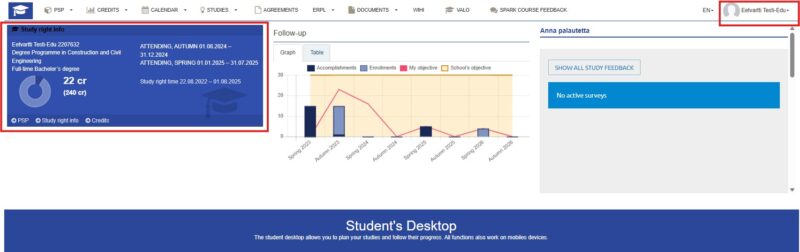
You can view and edit your personal information by hovering over your name in the top right-hand corner of the Student desktop.
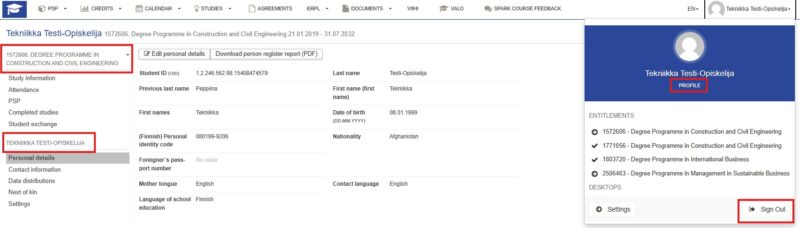
If you have multiple entitlements, you can select the one you want by clicking your name in the top right-hand corner or by clicking the degree programme or course name shown above the left-hand menu.
As a student, you are required to keep your contact details (for example your personal email and home address) up to date in Pakki.
Updating contact information: If your contact details change or are incorrect, update them in Pakki via your profile by selecting Contact information tab and choosing “edit contact information”.
Changing personal details: You cannot change your name or personal identity number yourself in Pakki. If there is an error in your personal details or they need to be updated, submit a support request to the Helpdesk. Changes will be made on the basis of official documents.
Enrol yourself for the academic year in Pakki. Enrolment for the academic year and semesters is only possible while the enrolment period for the semester is open. Enrolment for the academic year is from 1 May to 31 July. You can edit your attendance information for the spring semester until 31 December.
You can enrol for the academic year in two different ways: via your Profile or via the Studies tab.
Click Profile > Attendance > Go to attendance enrolment
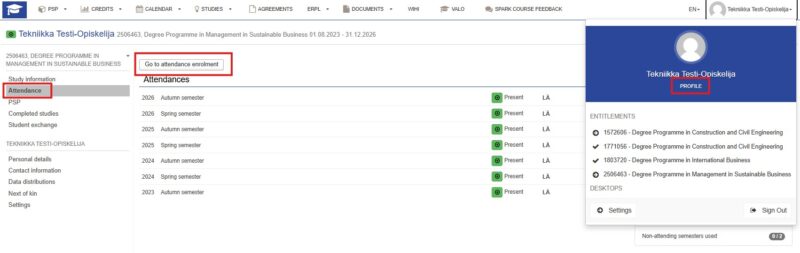
You will see your enrolment and attendance details on this page. If you still have remaining right-to-study time and available absence periods, you can register as present or absent. Enrol for the academic year as either present or absent and click Save.
If all your presence or absence periods have been used up, a notification will appear in the enrolment window. Similarly, if your right to study is coming to an end, you will be notified of that.
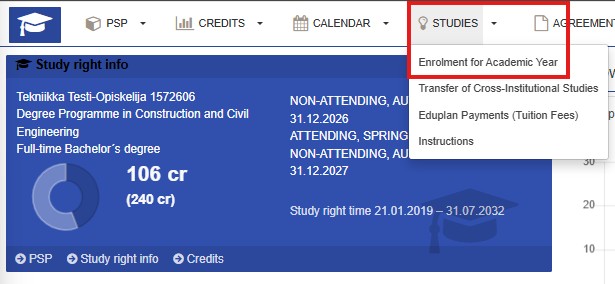
You can also enrol for the academic year via Studies > Enrolment for Academic Year, which takes you to the same enrolment and attendance information view.
Your PSP contains all the modules included in your degree and tools for planning your studies.
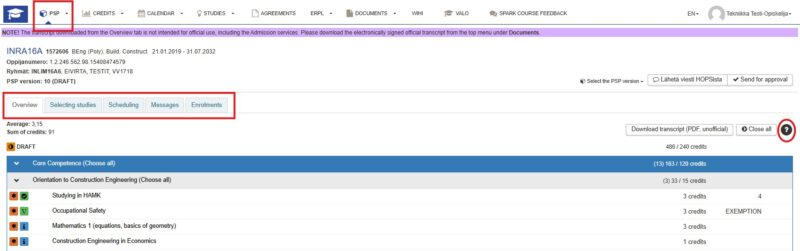
Overview view shows the curriculum you are following (by default your degree programme’s curriculum), the credit value of modules, registration status and the grade for a completed module once it has been recorded. If necessary, you can check the meaning of the icons in front of each module by clicking the question mark in the top right corner of the page.
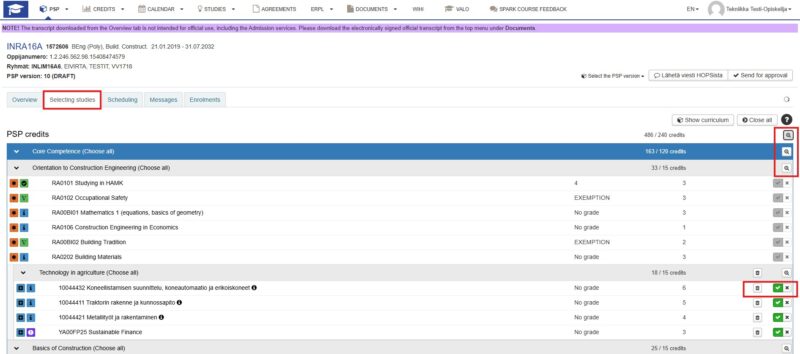
Selecting studies tab is where you plan your PSP. You can choose and add studies to your PSP using the Module Search feature, from either HAMK’s local offerings or cross-study options.
Scheduling tab lets you plan when to take the modules included in your PSP. The curriculum includes a model timetable that serves as a basis for scheduling. You can adjust timings for each module to suit your personal study plan. The timing plan is a tool for planning your studies; changes made in this view do not affect other views.
Messages tab lets you view all communications related to your PSP or studies.
Enrolments tab allows you to register for course offerings when registration is open. In this view you can see all your registrations as well as the course offerings for which, according to your PSP, you could register.
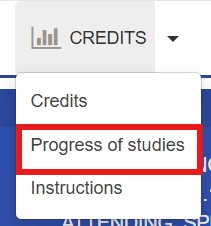
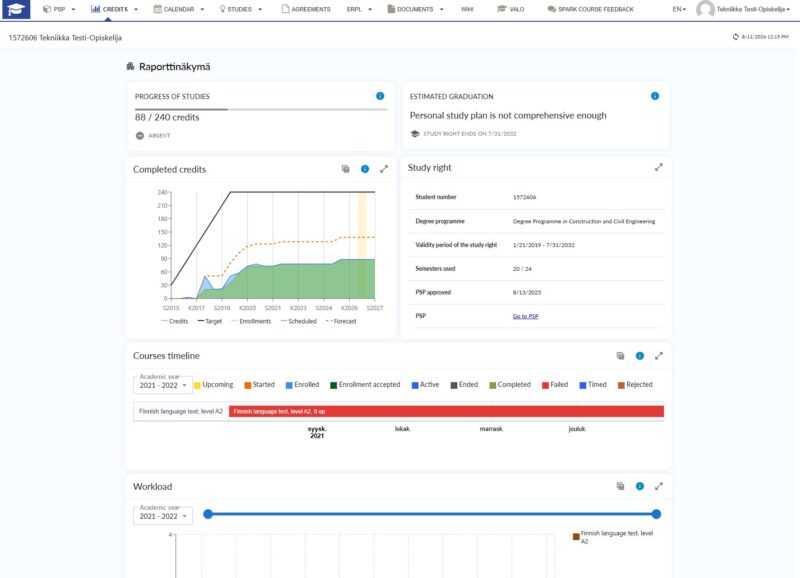
You can track the progress of your studies either via the Progress of studies tab or from Credits:
In the report view you can track:
- Your progress of studies
- Estimated graduation
- Details related to your study right
- Courses timeline of your studies.
- Your weekly workload
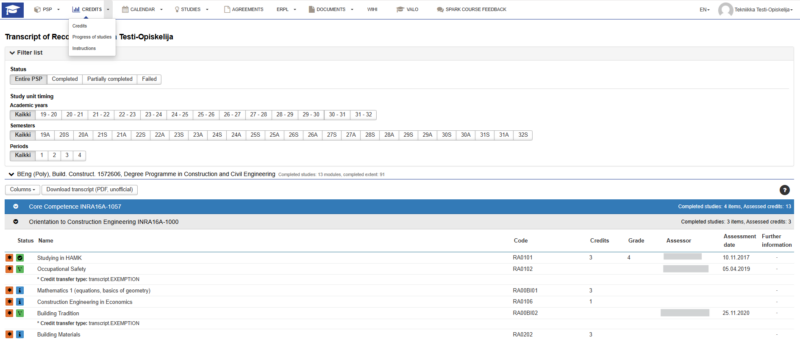
On the Credits page you can see, among other things, the assessments and any additional information relating to them. Filter the list, if necessary, by status or by the study unit timing.
Go to Module search by clicking the magnifying-glass icon after the name of the study module in PSP where you want to add courses. You can also remove elective course units from your PSP.
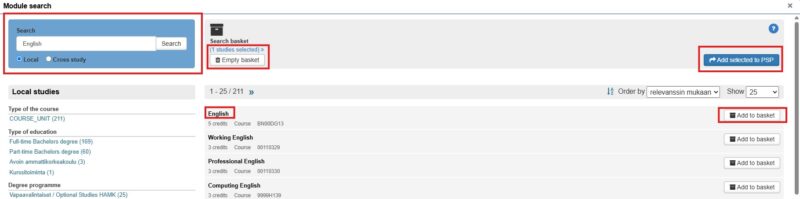
You can search for courses from the university’s local offerings or cross-study offerings by name, keyword or code in the Search for studies text field. More detailed information about a course opens by clicking the course row. You’ll also see whether any instances of the course unit have been planned and whether realizations for them is open.
- Select the courses you want for the basket by clicking Add to basket at the end of the row
- View the basket by clicking the x studies selected link
- Empty the basket by clicking Empty basket
- Remove an individual course from the basket by clicking the cross next to the course
- Transfer the selected courses to your PSP by clicking Add selected to PSP
- The courses will appear in your PSP under the module from which you started the course search.
Enrol for courses in Pakki or in the Tuudo mobile app. If the enrolment period is still open, you can remove your enrolment yourself in Pakki or Tuudo, if the teacher has not yet approved the enrolment.
Enrolments appear under three subheadings:
- Enrolment ongoing
- My Enrolments: Upcoming and ongoing implementations
- My Enrolments: Past implementations
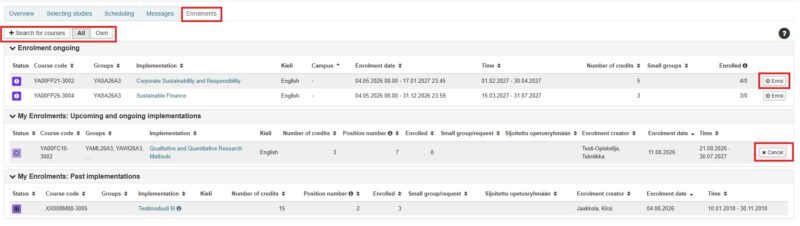
You can view all implementations in your PSP (All) or only those assigned to your group (Own). The ‘Search for courses’ function is not recommended, because courses always move directly to studies outside the PSP. Use the ‘Selecting studies’ tab to search for courses and add a course using the magnifying glass under the correct heading.
You can enrol on a course by clicking the Enrol button at the end of the course listing. If the enrolment period has ended, you must contact the teacher responsible for the course instance. You can find the teacher by clicking the implementation name.
You can cancel your enrolment by clicking the Cancel button at the end of the course listing if the teacher has not yet approved your enrolment. If you wish to cancel your participation after approval, you must contact the teacher responsible for the course instance. You can find the teacher by clicking the implementation name.
HAMK student’s may give feedback via Spark feedback service in Pakki, which can be found in the top menu and on the front page overview:
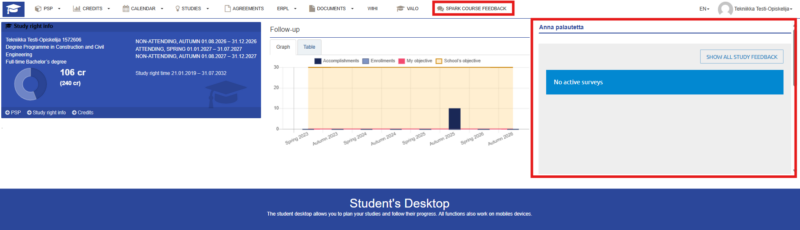
The feedback service recognises the courses you have been accepted to in Pakki. The survey opens 7 days before the implementation ends and you will also receive an email reminder if you have not submitted your response by the end of the implementation. The survey closes 14 days after the implementation has ended, after which you can view the feedback report under “Show all study feedback”.
SPARK is also used in Professional Teacher Education programmes, as well as for cross-institutional and Open UAS studies.
You can download an electronically signed official study certificate and transcript of records from the top menu under Documents > New order
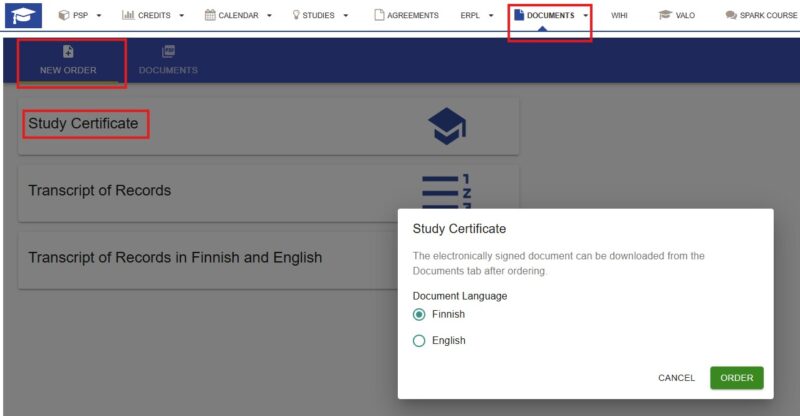
Click the Order button to request the documents you want; they will then be available for download under Documents.
Once you have graduated you will receive a link to your personal email directing you to download your electronic degree certificate from Pakki, under Documents > Degree certificate. Read more here.
From the top menu of Pakki you can log in to the Wihi system. Wihi is a software for the supervision and management of thesis projects, and it monitors the progress of the thesis and saves the events, files, communications and activity during the thesis process. More detailed instructions for using Wihi can be found in the Wihi instructions for students.
You can start the graduation process in the VALO service in Pakki once you have completed at least 80% of your bachelor’s degree or 50% of your master’s degree. Please note that time must be allowed for the different stages of the application process and that holidays may delay the processing of your application. You can find the checklist for graduating students here.
The Professional Teacher Education programmes holds two graduation days each month. You can view the graduation dates and more detailed instructions for graduation from here.